How to Secure WordPress Business Websites
Imagine waking up on a busy Tuesday morning. You grab your cup of coffee, sit down at your desk, open your laptop, and type in your company website URL.
Instead of seeing your clean homepage, professional services, and contact form, you see a blank white screen. Or worse, a giant banner warning visitors that your site contains dangerous malware. Your phone rings. It is an angry client asking why their browser blocked your site, or why spam emails are coming from your company domain.
It feels like someone walked into your physical shop, threw the shelves on the floor, locked the front door, and stole the cash register.
If you run a business on WordPress, this is a real risk.
WordPress powers over 40% of the entire web. Because it is so popular, it is also the favorite target for automated bots, malware, and cybercriminals.
Here is the good news: learning how to secure WordPress business websites does not require a degree in computer science.
You do not need to be a programmer. You do not need to spend thousands of dollars on enterprise cybersecurity software. In fact, most site break-ins happen because of simple, avoidable mistakes like using weak passwords or leaving outdated plugins lying around.
In this guide, we will break down WordPress security in plain, simple English. Think of this as your practical website security playbook. We will go through every step you need to take to lock your digital front door, keep bad actors out, and protect your business reputation.
Why You Must Learn How to Secure WordPress Business Websites
When business owners think about hackers, they often picture a person in a dark room typing fast on a keyboard, specifically trying to steal secrets from Fortune 500 companies.
In the real world, that is almost never what happens to a normal business website.
Hackers do not break into your WordPress site because they have a personal grudge against your local accounting firm, dental clinic, or online shoe shop. They use automated scripts and bots.
These bots crawl the internet 24 hours a day, scanning millions of websites every minute, looking for known open doors. When they find an open door (such as an old plugin with a security hole), they break in automatically.
Here is what happens when a business website gets hacked:
1. You Lose Search Engine Rankings Overnight
Google cares deeply about user safety. If Google crawlers detect harmful scripts, malware, or spam redirects on your pages, they will place a bright red security warning on your search results. In many cases, your site gets removed from Google search results entirely. Getting back on Google after a malware infection can take weeks of painful recovery.
2. You Lose Real Money and Leads
If your website is down or displaying error warnings, customers cannot buy your products, book appointments, or fill out your contact forms. They will simply click the back button and buy from your closest competitor.
3. Your Business Reputation Takes a Big Hit
If a customer receives spam emails from your domain, or if their sensitive contact details get leaked because your site was compromised, winning back their trust is extremely hard. Trust takes years to build, but only a few minutes to lose.
4. You Might Face Legal and Hosting Penalties
Hosting companies immediately shut down hacked accounts to prevent malware from spreading to other servers. If your site handles customer data or payments, data privacy laws require you to protect that information.
Securing your site is not an optional technical chore. It is an essential business insurance policy.
The Foundation: Choosing Secure Hosting for Your Business Site
Your web hosting company is the foundation of your digital house. If you build a mansion on soft mud, the house will eventually sink, no matter how strong your walls and locks are.
Many business owners start out by buying the cheapest shared hosting plan they can find, often paying $2 or $3 per month. While cheap hosting might work for a small personal hobby blog, it is a huge risk for a growing business.
The Problem with Cheap Shared Hosting
In a shared hosting environment, hundreds or even thousands of websites live on the exact same server machine. If one website on that server gets infected because of poor security, the infection can sometimes cross over to other sites sharing that same server space. Furthermore, cheap hosts rarely offer 24/7 security monitoring, automated cleanups, or daily isolated backups.
What to Look For in a Business-Grade Host
For a real business, look for managed WordPress hosting or reliable, isolated cloud hosting. A good hosting provider gives you:
Automatic server-level firewalls: They block malicious traffic before it even touches your WordPress installation.
Daily automated backups: Stored in a separate, secure location.
Isolated server environments: Your site resources are separate from other users.
Server-level malware scanning: Constant background checks for suspicious activity.
Fast customer support: Knowledgeable engineers available via live chat whenever an emergency happens.
Investing a few extra dollars each month in reputable hosting will save you countless headaches down the road.
Keeping WordPress Core, Themes, and Plugins Updated
If you ask any security engineer what the number one reason WordPress sites get hacked is, they will give you a one-word answer: outdated software.
WordPress is built using open-source code. When developers discover a security bug in WordPress, a theme, or a plugin, they quickly fix it and release an update.
The moment that update becomes public, the release notes explain what bug was fixed. Cybercriminals read these update notes immediately. They build automated scripts to scan the web for websites that have not installed the update yet.
If you wait three months to update your plugins, you are leaving your front door wide open while thieves walk down the street checking doorknobs.
Step 1: Update Your Plugins and Themes Regularly
Get into the habit of logging into your WordPress admin dashboard at least once a week. If you see bright red update badges, do not ignore them.
Update WordPress core whenever a new minor release or security patch comes out.
Update your plugins as soon as updates are verified.
Update your themes, including themes you are not actively using (or better yet, delete them).
Step 2: Delete What You Do Not Use
Many business sites collect digital clutter over time. You test three different contact form plugins, pick one, and leave the other two deactivated in your dashboard.
Deactivated plugins are still stored on your server. Even if a plugin is inactive, an attacker can still exploit its files if those files contain an unpatched security flaw.
Rule of thumb: If you are not actively using a theme or plugin, do not just deactivate it. Delete it completely. Keep your website lean and clean.
Step 3: Never Use Pirated or "Nulled" Plugins
Never download premium plugins or themes from unauthorized third-party file-sharing websites for free. These are known as "nulled" software.
Almost every nulled plugin contains hidden backdoors, spam links, and tracking code placed there intentionally by the people who cracked the software. By installing a nulled plugin to save $40, you are literally installing malware on your own business website. Always buy directly from official plugin developers or the official WordPress.org repository.
Locking Down Your WordPress Login Page
The login page is the main entryway into your website. By default, WordPress sets the login page to your domain followed by /wp-login.php or /wp-admin.
Because this address is universal, automated bots spend millions of hours every day attacking this exact URL. They try thousands of username and password combinations in a matter of seconds. This technique is called a brute-force attack.
Securing your login page stops the majority of low-level attacks in their tracks.
1. Stop Using "admin" as Your Username
When WordPress was first created many years ago, the default administrator username was "admin". Even today, millions of site owners still use "admin", "webmaster", or their company name as their login username.
When you use "admin", you give the bots half of the puzzle for free. All they have to do now is guess your password.
Create a new administrator account with a unique, personal username that is not easy to guess.
Log out of the old "admin" account, log into your new account, and completely delete the old "admin" user. WordPress will ask what to do with the content created by that user; simply attribute all existing posts to your new account.
2. Use Strong, Unique Passwords
Avoid using dictionary words, pet names, birthdays, or simple sequences like Password123! or Business2026#.
Modern computers can crack simple eight-character passwords in a fraction of a second. Use a password manager to generate a random string of at least 16 to 20 characters containing uppercase letters, lowercase letters, numbers, and symbols.
3. Turn on Two-Factor Authentication (2FA)
If you only take one single action from this entire guide, make it this one.
Two-Factor Authentication (2FA) is the strongest defense against unauthorized logins. When 2FA is active, entering your username and password is not enough. You must also enter a temporary six-digit code generated on your smartphone using a free authenticator app (such as Google Authenticator, Microsoft Authenticator, or Authy).
Even if an intruder steals your password through a data breach or keylogger, they cannot log into your website without your physical phone in their hands. Setting up 2FA takes less than five minutes using free security plugins, and it eliminates over 99% of automated login breaches.
4. Limit Login Attempts
By default, WordPress allows users to guess passwords an infinite number of times without locking them out. A bot can try 10,000 combinations every hour without breaking a sweat.
You should install a lightweight plugin or security tool that limits failed login attempts. For example, you can set a rule: If someone enters the wrong password five times in a row, block their IP address for two hours. This completely stops brute-force bots because guessing thousands of passwords would take them years instead of minutes.
5. Change Your Login URL
While this is what security experts call "security through obscurity" (meaning it is not a complete shield on its own), moving your login page from /wp-login.php to a custom URL like /my-secret-portal/ stops thousands of automated bots from ever reaching your login form. This also reduces unnecessary server load caused by bots constantly pinging your login page.
Protecting Your Site with a Web Application Firewall (WAF)
A firewall acts like a security guard standing outside the entrance of a VIP event. Before any visitor, web browser, or automated bot is allowed to view your website, the firewall inspects their digital badge and behavior.
If the visitor looks like a regular human looking to buy your products, the firewall lets them right through. But if the visitor is an automated bot trying to inject malicious code or search for vulnerable files, the firewall blocks them immediately at the border.
Cloud Firewalls vs. Plugin Firewalls
There are two main types of firewalls you can use for WordPress:
DNS-Level or Cloud Firewalls: Services like Cloudflare sit between your website and the rest of the web. They intercept all web traffic before it even touches your hosting server. This is the best option because malicious traffic is stopped far away from your site, keeping your server fast, clean, and unburdened.
Plugin-Level or Application Firewalls: Plugins like Wordfence or Sucuri run directly on your WordPress installation. They inspect traffic once it reaches your server. While they are very effective at catching bad requests and scanning internal files, they do consume server memory and processing power.
For maximum protection, many businesses use both: a cloud firewall (like Cloudflare) to block general bot attacks and distributed denial-of-service (DDoS) traffic, alongside a WordPress security plugin to monitor file integrity and login activity.
Setting Up Daily Automated Backups: Your Ultimate Safety Net
No security system is 100% invincible. Even giant banks, government agencies, and tech conglomerates occasionally suffer security incidents.
If something unexpected happens (whether it is an attacker, an accidental mistake by an employee, or a broken plugin update that crashes your site), your backup is your eject button. It lets you restore everything back to normal within minutes.
If you have a clean backup, an incident is an annoyance. If you do not have a backup, an incident can mean the death of your business.
The Golden Rules of Website Backups
Automate the Process: Do not rely on your memory to take manual backups once a month. Set up an automated system that backs up your site daily (or hourly if you run an active e-commerce store).
Store Backups Off-Site: Never store your backup files on the same server as your website. If your server gets compromised or wiped clean, your backups will be deleted along with the site. Store your backups on independent cloud storage, such as Google Drive, Amazon S3, or Dropbox.
Test Your Backups: A backup is only good if it actually works when you need it. Once every few months, test restoring your backup onto a staging environment to make sure your database, images, and customer orders are intact.
Reliable plugins like UpdraftPlus, BlogVault, or Duplicator make scheduling off-site backups simple and straightforward.
Hardening WordPress: Simple Tweaks That Make a Big Difference
Beyond logins and firewalls, there are several simple configuration tweaks you can apply to make WordPress much tougher for intruders to crack. Most of these can be done with a single click inside popular security plugins, or by adding a few clean lines of text to your site configuration files.
1. Disable File Editing Inside the Dashboard
By default, WordPress allows administrators to edit theme and plugin code directly from inside the admin dashboard under Appearance > Theme File Editor.
This feature is dangerous. If someone manages to guess your password and enter your dashboard, they can immediately use this built-in editor to paste malicious code directly into your theme files.
You can turn off this editor completely by adding one single line of code to your wp-config.php file:
PHP
define( 'DISALLOW_FILE_EDIT', true );
Once you save this change, the file editor disappears from your dashboard. Even if someone gains administrative access, they cannot modify your core theme files from the web browser.
2. Disable XML-RPC
XML-RPC is an old communication protocol built into WordPress that allows external mobile apps and services to communicate with your site.
Today, most modern applications use the newer WordPress REST API instead. However, XML-RPC remains enabled by default on many sites. Intruders love XML-RPC because it allows them to send hundreds of password guesses in a single network request, bypassing basic login limiters.
Unless you are using an older mobile app or specific third-party integration that explicitly requires XML-RPC, you should disable it completely using a security plugin or your .htaccess file.
3. Hide the WordPress Version Number
By default, WordPress places a small tag in your site source code showing the exact version number of WordPress you are running (for example: WordPress 6.4.2).
If an exploit is discovered for an older version, bots will scan web pages looking for sites proudly displaying that version number in their source code. Hiding your version tag does not replace regular updates, but it removes an easy clue for automated scrapers.
4. Turn Off Directory Browsing
If a visitor types the folder path of your website into their browser (for example, [yourbusiness.com/wp-content/uploads/](https://yourbusiness.com/wp-content/uploads/)), your web server might display a full list of all files inside that folder if directory indexing is enabled.
This gives outsiders a clear roadmap of your images, documents, and theme files. You can disable directory indexing easily by adding this single line to the top of your .htaccess file:
Plaintext
Options -Indexes
Protecting User Accounts and Managing Team Permissions
As your business grows, you will likely invite other people to work on your website: content writers, graphic designers, marketing agencies, search engine specialists, and virtual assistants.
Every user account on your site is a potential entrance for an attacker. Managing who has access, and how much access they have, is critical for internal security.
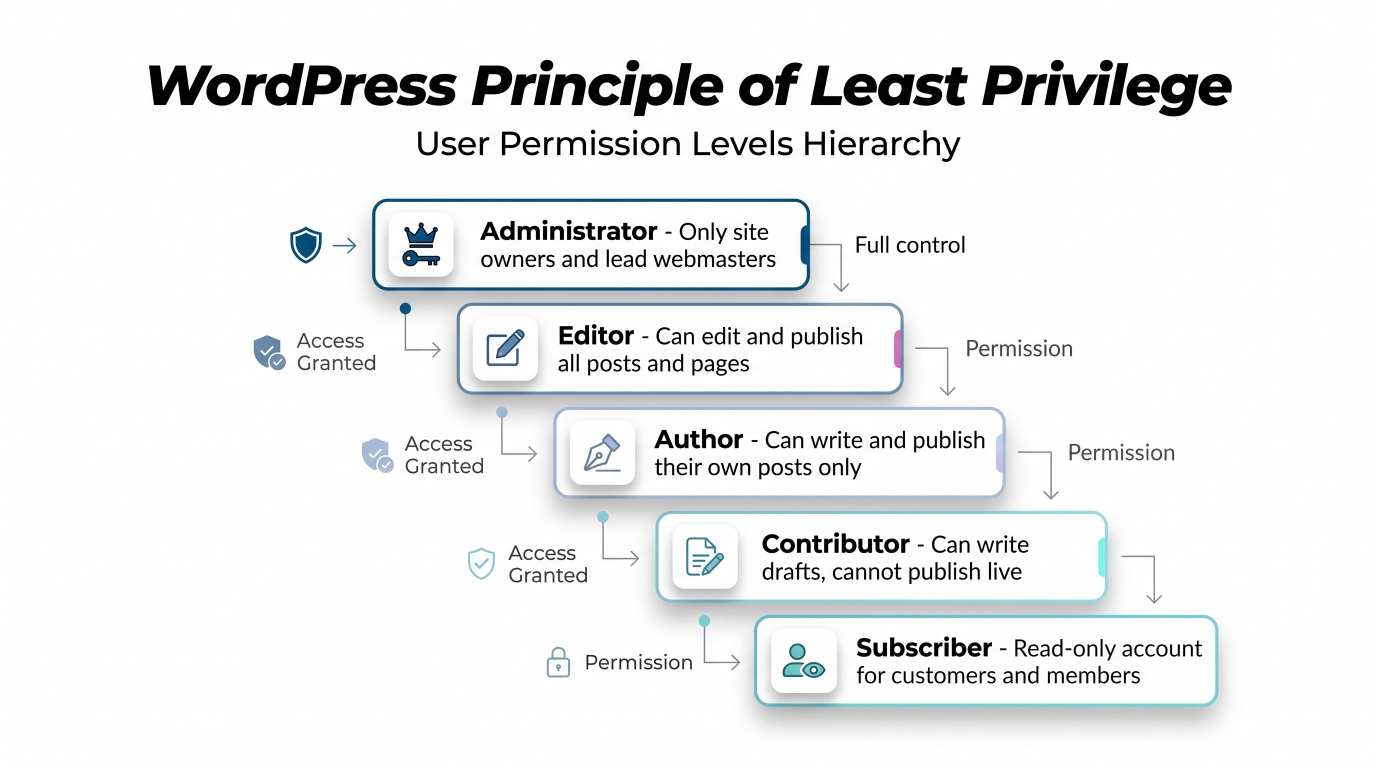
The Principle of Least Privilege
Give team members only the minimum level of access they need to do their everyday job.
If you hire a freelance writer to write blog posts, they do not need an Administrator account. Assign them the Author or Contributor role.
If someone is checking store orders, assign them a specific Shop Manager role in WooCommerce.
Reserve the full Administrator role strictly for yourself and your primary technical lead.
Review and Remove Old Accounts
When an employee leaves your company, or when your contract with an external agency ends, immediately remove their user account or downgrade their permissions. Old, abandoned accounts with forgotten passwords are an easy target for attackers.
Securing Your Database and File Structure
Everything on your WordPress website lives in two places: your database (which holds your written text, settings, comments, and customer info) and your file system (which holds your images, plugins, and core code). Protecting both layers adds extra safety.
1. Change the Default Database Table Prefix
When you install WordPress, every database table is created with the default prefix wp_ (such as wp_posts, wp_users, and wp_options).
Because this prefix is well known, automated database attacks assume your tables start with wp_. Changing this prefix during installation, or safely renaming it later using a trusted security plugin, to something unique like biz94_ makes automated database attacks much harder to pull off.
2. Set Proper File Permissions
Every file and folder on your web hosting server has a set of permission numbers that tell the server who is allowed to read, write, or execute the file.
If your file permissions are set too loosely (for example, giving full public write access), any script can modify your core files.
Here are the standard, secure permission guidelines for WordPress:
Folders and Directories:
755Regular Files:
644wp-config.php:
600or640(so unauthorized users cannot read your database passwords)
Most modern hosting control panels allow you to reset your file permissions to the correct values with one click.
3. Move or Protect Your wp-config.php File
The wp-config.php file is the brain of your website. It contains your database name, database username, and secret database connection password.
You must protect this file at all costs. You can block direct web access to this file by adding the following snippet into your .htaccess file:
Apache
<files wp-config.php>
order allow,deny
deny from all
</files>
Installing an SSL Certificate: The Absolute Minimum Requirement
An SSL (Secure Sockets Layer) certificate encrypts the connection between your website and your visitor’s web browser. When SSL is installed, your site URL starts with https:// instead of http://, and browsers display a secure lock icon next to your web address.
Without SSL:
Every piece of information a customer types into your contact forms, checkout pages, or login screens travels across the web as plain, unencrypted text. Anyone intercepting the network traffic can read it.
Google Chrome and other major web browsers will display a prominent warning banner telling visitors: "Not Secure".
Your search engine rankings will suffer, because Google officially uses HTTPS as a ranking signal.
Today, there is no reason not to have an SSL certificate. Almost every quality web host provides free SSL certificates through Let’s Encrypt. You can enable it with a single toggle in your hosting account. Once enabled, make sure all traffic automatically redirects from HTTP to HTTPS.
Real-World Comparison: Basic Security vs. Hardened Business Website
To see the difference clearly, look at how a basic, vulnerable website compares to a properly hardened business site:
Feature | Vulnerable Setup | Hardened Business Setup |
Hosting | $2/month shared host | Managed cloud host with isolated resources |
Admin Username |
| Unique personal username |
Passwords | Simple, reused phrases | 20+ character random strings via password manager |
Login Security | Unlimited password guesses | Two-Factor Authentication (2FA) + 5-attempt lockout |
Firewall | None | Cloudflare DNS firewall + Wordfence security layer |
Updates | Performed every 4 to 6 months | Weekly review + automatic minor patches enabled |
File Editing | Enabled in dashboard | Disabled via |
Backups | Manual backup once a year | Automated daily off-site backups (cloud storage) |
SSL Status | Incomplete or HTTP | Full HTTPS with strict redirect rules |
Action Plan: What to Do If Your Site Gets Compromised
Even with strong precautions, accidents happen. If your site ever gets hacked, do not panic. Acting calmly and methodically will help you recover quickly without making the problem worse.
Here is an emergency action plan:
[Site Compromised]
       │
       ▼
1. Take Site Offline (Maintenance Mode)
       │
       ▼
2. Contact Your Hosting Support
       │
       ▼
3. Restore from a Known Clean Backup
       │
       ▼
4. Change All Passwords & Secret Keys
       │
       ▼
5. Scan Files for Residual Malware
       │
       ▼
6. Request Review from Search Engines
1. Put the Site in Maintenance Mode
Prevent real visitors from seeing malware warnings or getting redirected to dangerous sites while you fix things. Putting up a clean maintenance splash page protects your brand while you work behind the scenes.
2. Reach Out to Your Hosting Support
Inform your web host immediately. Their security engineers can check server access logs, see which files were altered, identify the exact IP address the intruder used, and freeze malicious processes running on the server.
3. Restore from a Clean Backup
If you have a clean backup taken a day or two before the infection occurred, restoring it is often the fastest, safest, and most cost-effective way to get back up and running.
4. Change All Passwords Immediately
Reset every password connected to your website:
All WordPress admin accounts
Your hosting control panel (cPanel or dashboard)
Your SFTP and FTP accounts
Your database user passwords
Your email accounts associated with the domain
5. Rotate Your WordPress Salt Keys
WordPress uses a set of security keys (called "salt keys") inside wp-config.php to encrypt cookies and login sessions. If an unauthorized user stole an active session cookie, they can remain logged in even after you change your password.
You can generate fresh secret keys from the official WordPress salt generator API (api.wordpress.org/secret-key/1.1/salt/) and paste them into your wp-config.php file. This immediately logs out every single active user session across the globe.
6. Submit a Security Review Request to Google
Once your site is completely clean, log into your Google Search Console account. Navigate to the Security Issues tab, click Request a Review, and explain clearly what steps you took to clean up the malware. Google will re-scan your website and remove the warning flags within a few business days.
Frequently Asked Questions About WordPress Business Security
Do I really need to pay for an expensive security plugin?
Not necessarily. Many free security plugins (such as Wordfence, Solid Security, or Sucuri) provide all the essential features you need: login protection, two-factor authentication, and file scanning.
Paid premium plans are helpful if you want real-time firewall rule updates, advanced country blocking, or hands-on incident cleanup guarantees, but the free versions combined with strong passwords and a good web host will protect the vast majority of business sites.
Can plugins slow down my WordPress website?
Poorly coded plugins can slow down your site, especially if they run heavy scans while your visitors are browsing. When choosing security plugins, pick reputable, well-tested options. Additionally, using a cloud firewall like Cloudflare actually makes your website faster because it filters out bad bot traffic before it ever touches your server.
How often should I check my site security?
Make it part of your normal business routine:
Weekly: Check for plugin, theme, and core software updates.
Monthly: Verify that your automated backups are creating fresh snapshots properly.
Quarterly: Review your user list and remove accounts for past contractors, employees, or agencies who no longer need access.
Is WordPress less secure than Shopify or Squarespace?
No. WordPress core is maintained by some of the best web security experts in the world. The difference is that platforms like Shopify or Squarespace are "closed systems" where the platform handles updates, hosting, and firewalls for you behind the scenes.
WordPress gives you 100% ownership and flexibility over your data and code. With that freedom comes the responsibility to choose good hosting, run updates, and set up your own locks. When maintained properly, a WordPress website is just as safe as any closed platform.
Your 15-Minute WordPress Security Checklist
You do not need to do everything all at once. Start right now with this quick checklist:
Turn on Two-Factor Authentication (2FA) for all administrator accounts.
Update all plugins, themes, and WordPress core to their newest versions.
Delete any inactive plugins and unused themes.
Check that your SSL certificate is working and your URL shows
https://.Set up automated daily backups to Google Drive or Dropbox.
Remove default "admin" usernames and replace them with strong personal accounts.
Install a trusted firewall to stop automated bots before they reach your pages.
Securing your website is not about being paranoid; it is about being prepared. By putting these basic protections in place today, you protect your revenue, safeguard your customer trust, and ensure your business continues to grow safely.
Ready to grow your business?
Contact us today to find out how our strategies can scale your operations to the next level.
Contact Us